Search results

Summary
This page describes the Results page, which opens to the right of the Search page when a search runs:
- the summary of what was found,
- the list of results, sorted and navigated with the mouse or the keyboard,
- the filters that narrow the list without searching again,
- the context menu of a file,
- the actions on all results: export, checksums, metadata, trash and delete.
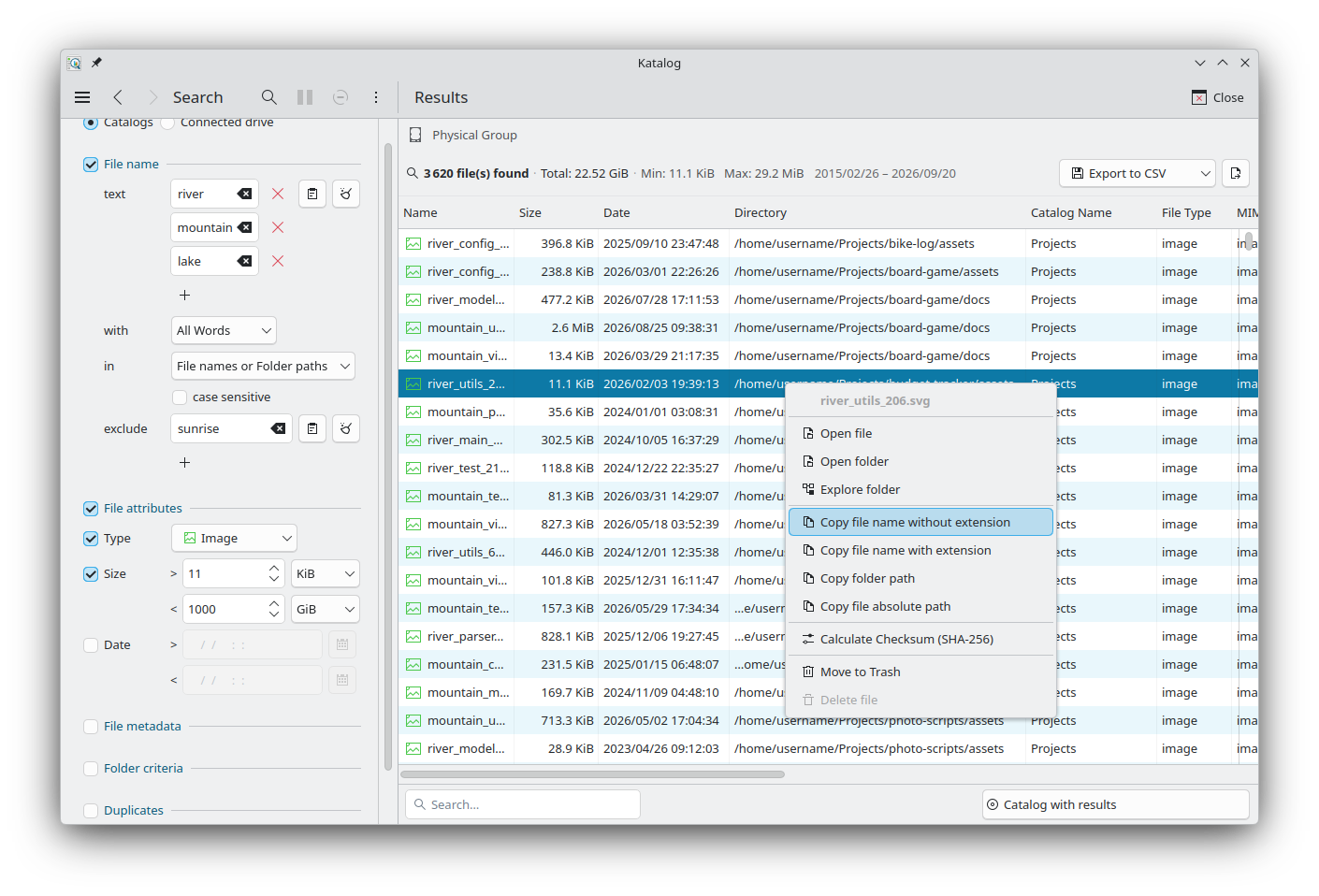
Summary line
The top of the page shows:
- the device that was searched (for example Physical Group / Photo Drive),
- the number of results: files, folders, duplicates or differences found,
- the total size of the files found, their smallest and largest size, and the range of their dates.
When the device of a file is not available (disconnected, or its path changed), opening the file or its folder is refused and a short message appears at the bottom of the window: The device is not active. It may be disconnected, or its path may have changed.
When the device is available but the file or folder is no longer there (for instance the catalog needs an update), opening it is refused as well and the message is File not found or could not be read or Folder not found.
Results list
Columns
| Column | Content |
|---|---|
| Name | File name, with an icon for its type. |
| Size | File size. |
| Date | Last modification date. |
| Directory | Folder of the file. |
| Catalog Name | Catalog the file belongs to. |
| File Type, MIME Type | Type of the file. |
| Width, Height | Dimensions, for images and videos. |
| Duration | Duration, for audio and video files. |
| Artist, Album, Title | For audio files. |
| Checksum (SHA256), Checksum Date | Checksum of the file, and when it was calculated. |
The metadata and checksum columns are filled only for catalogs created with these options (see Create).
When the search lists folders only (see Folder criteria), the Name, Size and Date columns are not shown, and each row is a folder.
Using the list
- Click a row to open the file with its default application.
- Right-click a row (or press and hold) to open its context menu.
- Click a column title to sort by that column; click again to reverse the order. The sort is kept for the next searches.
- Drag the line between two column titles to change a column width; double-click it to fit the column to its content. The widths of Name, Directory and Catalog Name are kept.
Keyboard
After a search, or after clicking a row, the list can be used with the keyboard. After a search no row is selected yet: ↓ selects the first one.
| Key | Action |
|---|---|
↑ ↓ | Previous or next row. |
Page Up Page Down | One page up or down. |
Home End | First or last row. |
Enter | Opens the file, as a click does. |
Menu or Shift+F10 | Opens the context menu of the row. |
Ctrl+E (Cmd+E on macOS) | Explore folder on the row. |
← → | Scrolls the list horizontally. |
| Typing letters | Goes to the next row whose name starts with the typed text. |
Filters
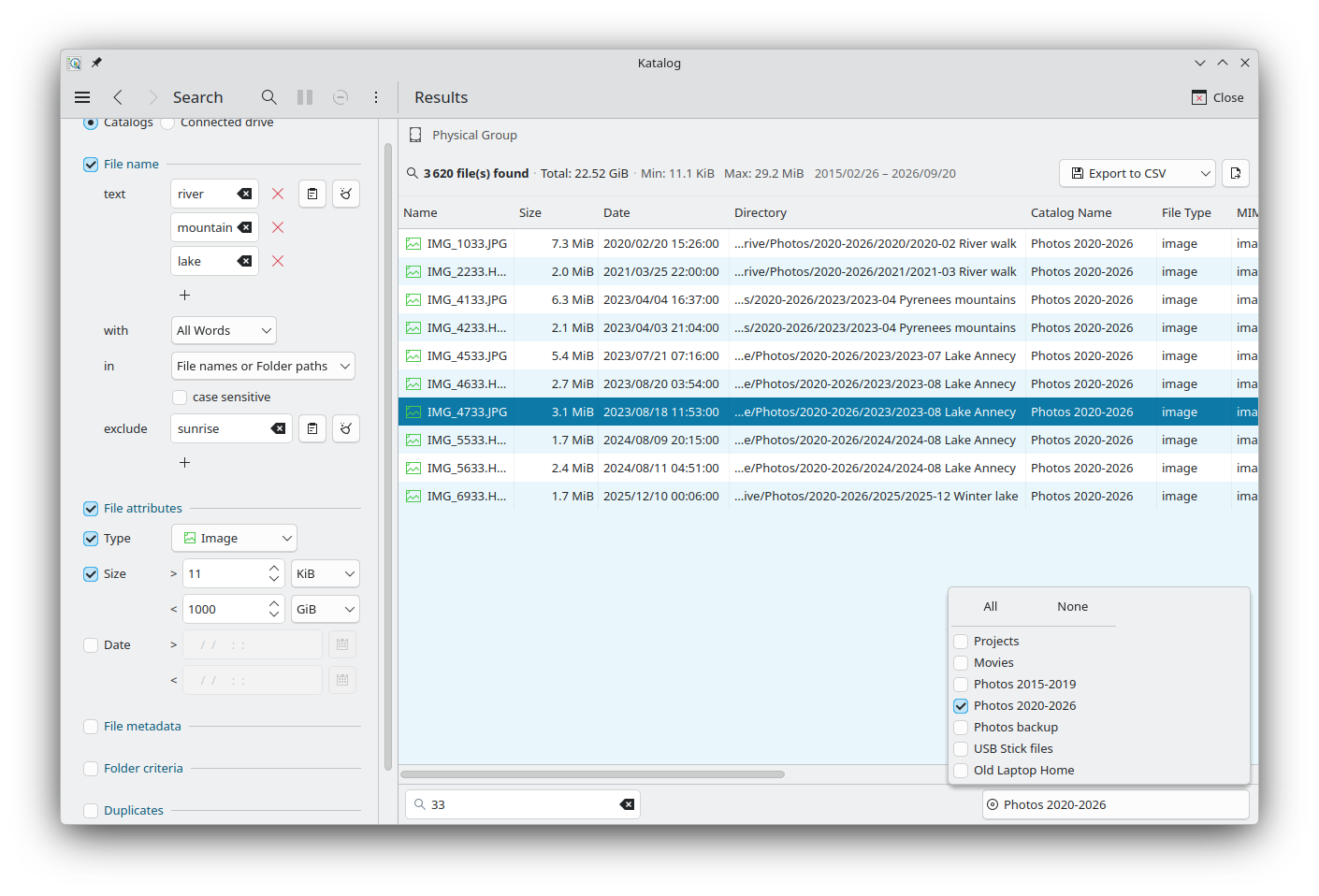
The bar at the bottom of the page narrows the list without running the search again:
- Search...: shows only the files whose name contains the typed text, as it is typed, whatever the case.
- Catalogs with results: lists the catalogs where results were found. All of them are ticked at first; untick a catalog to hide its results. All ticks every catalog; None unticks them all, so no result is shown until a catalog is ticked again. The button shows the number of ticked catalogs.
Both filters apply together. When a new search ends, the text is cleared and every catalog is ticked again.
Context menu
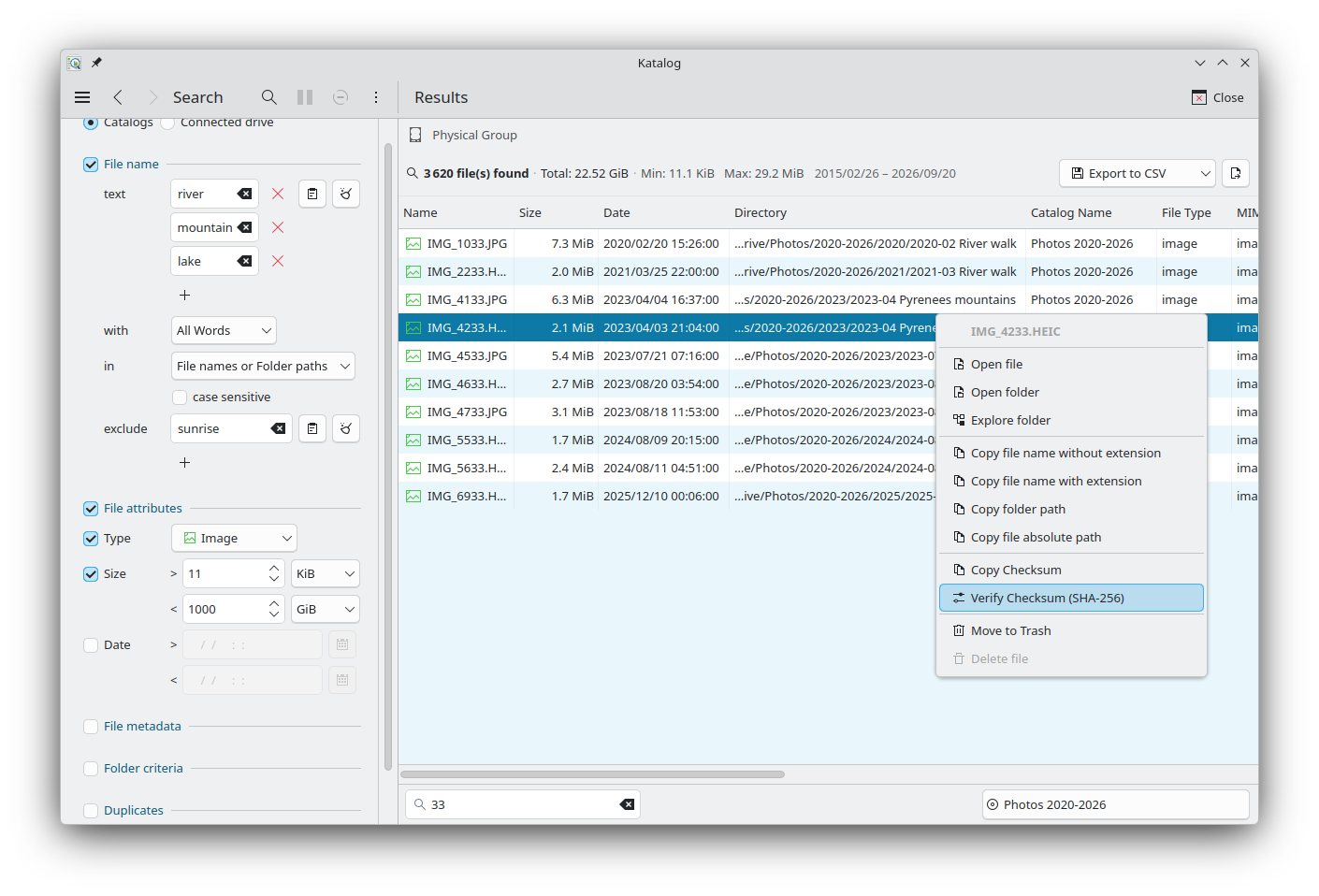
Right-clicking a row opens a menu that starts with the file name:
| Item | Action |
|---|---|
| Open file | Opens the file with its default application. |
| Open folder | Opens the folder of the file in the file manager. |
| Explore folder | Opens the folder in the Explore page, inside its catalog. Explore then fills the window. Close (or Esc) on Explore comes back to the same results. Shortcut: Ctrl+E (Cmd+E on macOS) on the selected result. Not available for a search in a connected drive. |
| Show extended metadata (JSON) | Shows all the metadata stored for the file, as a table, with Copy JSON. |
| Copy file name without extension | Copies report_2025 from /home/username/Documents/report_2025.pdf. |
| Copy file name with extension | Copies report_2025.pdf. |
| Copy folder path | Copies /home/username/Documents. |
| Copy file absolute path | Copies /home/username/Documents/report_2025.pdf. |
| Calculate Checksum (SHA-256) | Calculates the checksum of the file and saves it. Shown when the file has no checksum yet. |
| Copy Checksum | Copies the saved checksum. Shown when the file has one. |
| Verify Checksum (SHA-256) | Calculates the checksum again and compares it with the saved one. If they differ, the two values are shown, with Update Checksum to save the new one. |
| Move to Trash | Moves the file to the trash of the system. |
| Delete file | Deletes the file permanently, after confirmation. Available only when Authorize actions that delete files (no recovery) is enabled in the Settings. |
When the results are folders, the items about a file name are shown but disabled.
Actions on all results
The list next to Export chooses an action, and the button beside it (Run process on all results) applies it to all the results:
| Action | Description |
|---|---|
| Export to CSV | Saves the results to a CSV file in the collection folder (the home folder in Hosted mode); its path is shown when done, and clicking it opens the file. |
| Export to Catalog | Saves the results as a new catalog, under a virtual device Search Results (see Devices). |
| Verify Checksums | Calculates the checksums of all results and compares them with the saved ones, after confirmation. A report gives the number of files matched, mismatched, newly calculated and in error. |
| Extract Metadata | Reads the metadata of all results and saves it, after confirmation. A report gives the number of files updated, skipped and in error. |
| Move to Trash | Moves all results to the trash, after confirmation. |
| Delete | Deletes all results permanently, after confirmation. Available only when Authorize actions that delete files (no recovery) is enabled in the Settings. |
Development
- See the backlog of Search development.