Edit device

Summary
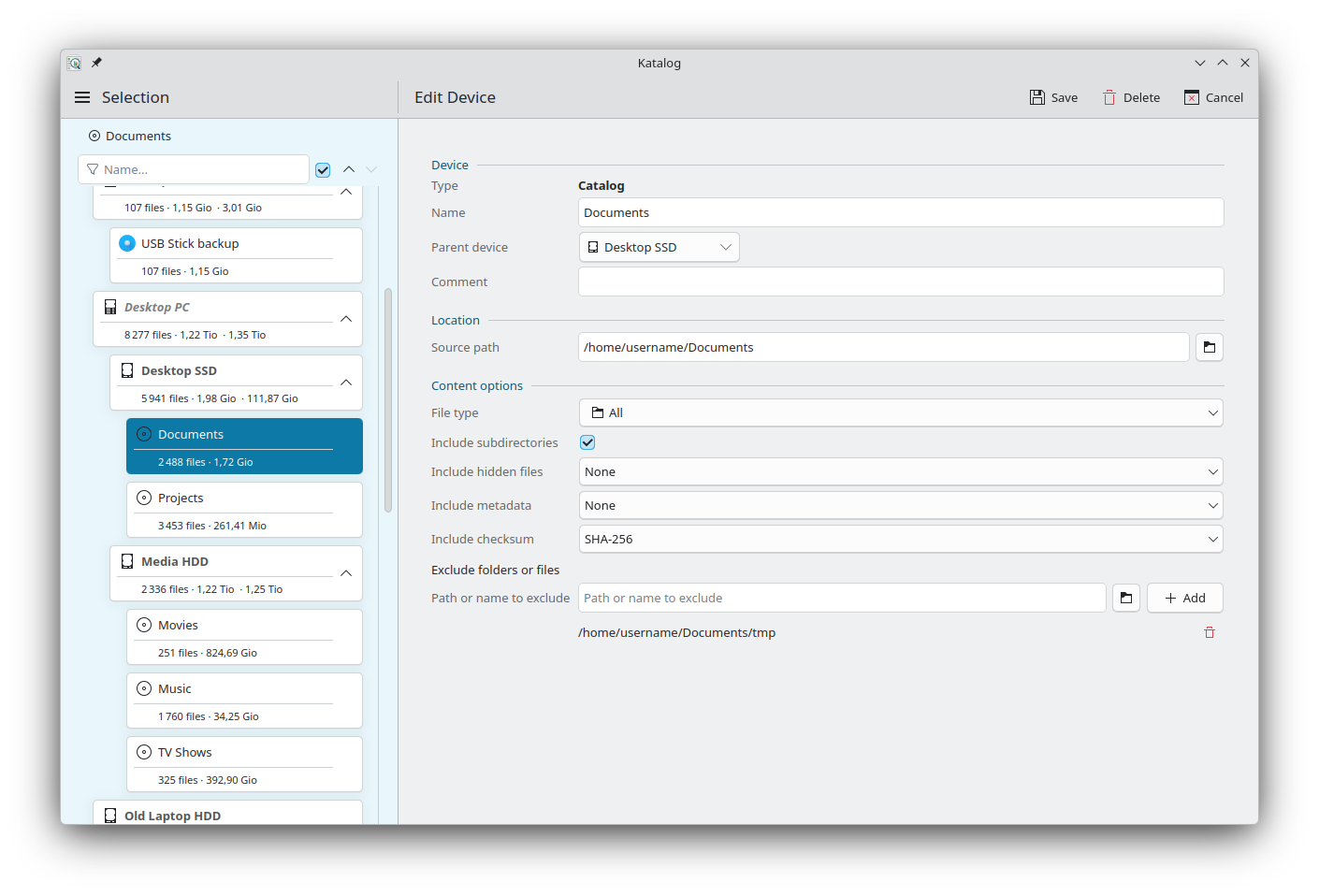
This page describes the Edit Device page, where the definition of a device is changed:
- the fields common to all devices: name, parent device, comment,
- the source path of a catalog or a storage, and what happens when it changes,
- the content options of a catalog,
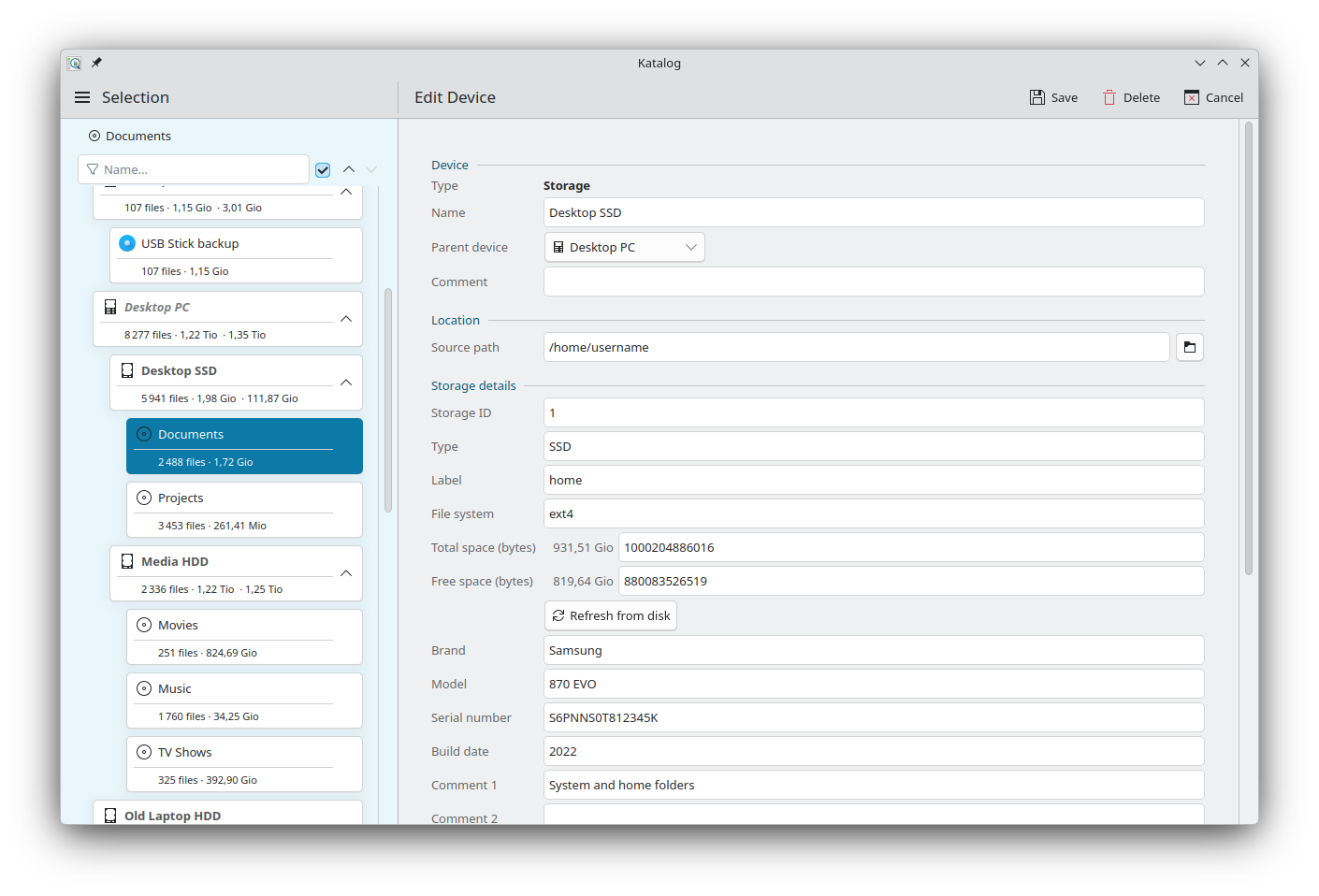
- the storage details and picture of a storage device.
The device types are described on the Devices page.
Opening and closing
The page opens:
- with Edit in the context menu of a device, on the Selection or Devices page,
- after creating a device with Insert Virtual Group, Add Storage, Add Virtual device or Add Storage device on the Devices page.
| Action | Description |
|---|---|
| Save | Saves the changes, after the confirmations described below, and closes the page. |
| Delete | Deletes the device from the collection, after confirmation. A device that still has devices below it cannot be deleted. |
| Cancel | Closes the page without saving (also Esc). |
When the page was opened from Devices, it returns to Devices.
Device
For all devices:
| Field | Description |
|---|---|
| Type | Catalog, Storage or Virtual. Shown only, it cannot be changed. |
| Name | Name of the device, needed to save. |
| Parent device | Device it belongs to, in the tree. A catalog belongs to a storage; a storage to a virtual device of the Physical Group. The Physical Group itself has no parent. |
| Comment | Free note, shown next to the name on the device cards. |
Location
For catalogs and storage devices:
- Source path: the folder indexed by a catalog, or the folder where a storage device is mounted (for example
/run/media/username/Photoson Linux,E:\on Windows). Select the path opens a folder dialog.
For a new storage device, setting its path for the first time and saving updates it at once, which fills its space figures.
When the path changes
When the path of a catalog or a storage changes and is saved, a dialog shows the old and new paths and asks how the catalog indexes should be updated:
| Button | Effect |
|---|---|
| Replace path root | Replaces the old path by the new one in all the indexed files and folders: of the catalog, or of all the catalogs below the storage. Nothing is read from the drive, so it is instant and works with the drive disconnected. The activity panel reports how many catalogs, files and folders were changed. |
| Full re-index | Reads the files again from the new path. Needs the device to be available. |
| Skip | Saves the new path without changing the indexes. |
Replace path root is the choice when the files did not change and only the place where the drive is mounted changed, for example /mnt/drive1 becoming /mnt/drive01, or F:\ becoming G:\.
Content options
For catalogs, the same options as when the catalog was created (see Create):
| Field | Description |
|---|---|
| File type | All, Audio, Image, Text, Video, Other or None. |
| Include subdirectories | Indexes the files of the sub-folders too, or only those directly in the source path. |
| Include hidden files | None or All. |
| Include metadata | None, Media Basic, Media Extended or Full Extended. |
| Include checksum | None or SHA-256. |
| Exclude folders or files | Paths or names that are not indexed. Type a path or a name (or use Select the path) and click Add; Remove takes one out of the list. |
When an option or the source path changes, saving lists the changes and asks for confirmation, as the catalog no longer matches what was indexed. A second question then offers to update the catalog content with the new criteria now (Yes), or later (No).
Storage details
For storage devices:
| Field | Description |
|---|---|
| Storage ID | The number of the storage, for example the number written on the physical disk. Each storage should have its own: when another storage already uses the number, the page shows Another storage already uses this ID. The number is saved anyway, and can be corrected. |
| Type, Label, File system | Kind of device, name of the drive, and its file system (ext4, NTFS, exFAT…). |
| Total space (bytes), Free space (bytes) | Space of the drive, with the value in a readable unit beside it. |
| Refresh from disk | Reads Type, Label, File system and the space values from the drive. Needs the drive to be available, and its path to be saved first. |
| Brand, Model, Serial number, Build date | Details of the drive, for reference. |
| Comment 1, Comment 2, Comment 3 | Free notes. |
Picture
A picture helps to recognise a drive. To add one:
- Place the image in the images folder of the collection (see Settings).
- Choose it in the Picture list. The refresh button beside the list (Reload pictures) reads the folder again after adding a file.
- Save.
The chosen picture is shown below the list.
When no picture is chosen, Katalog shows the file named after the Storage ID, if it exists in the images folder: for example 12.jpg for Storage ID 12. Naming a picture after the number written on the drive is enough for it to be shown, without choosing it in the list. The same name works in Katalog 2.
Development
- See the backlog of Devices development.