Explore

Summary
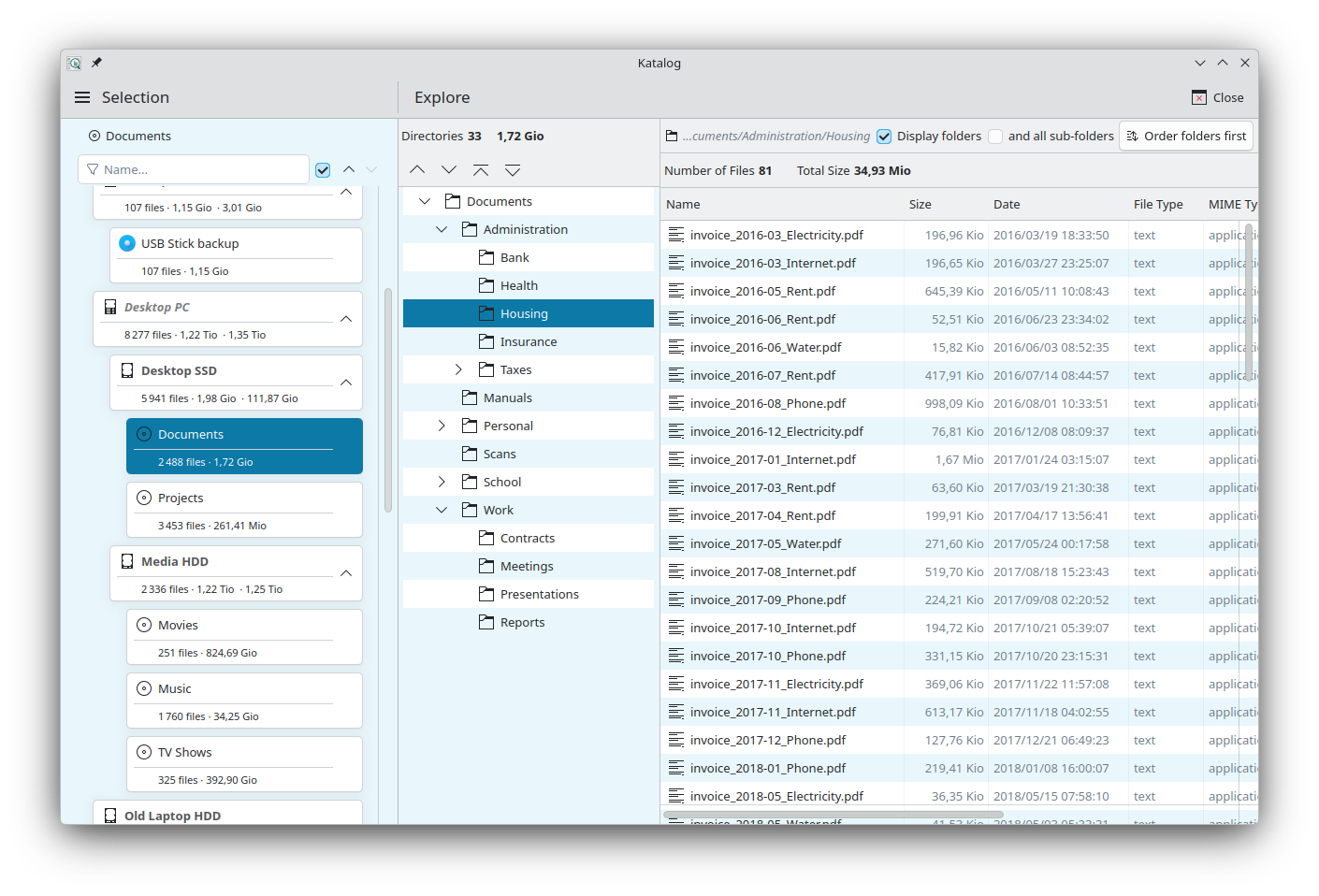
This page describes the Explore page, which shows the content of one catalog as a directory tree and a file list, even when its device is not connected:
- the directory tree of the catalog, on the left,
- the file list of the selected folder, on the right, with the size of each sub-folder,
- the context menu of a file or a folder,
- tagging a directory of the tree.
Opening a catalog
A catalog is opened in Explore with Explore, in the context menu of a catalog:
- on the Selection page: the catalog is also selected,
- on the Devices page,
- from a search result, with Explore folder (see Search results): Explore opens directly on the folder of the file.
While the Explore page is open, clicking a catalog on the Selection page opens it in Explore as well.
In Memory mode, a catalog's files are first loaded into memory. For a large catalog this can take a while: the progress is shown in the activity panel at the bottom of the window, and Stop cancels the load (Explore then keeps showing the previous catalog). Opening another catalog during a load replaces it. A catalog already loaded opens at once.
Explore in the drawer shows the page again with the last catalog explored since Katalog was started.
Close (or Esc) closes the page. When it was opened from a search result, it goes back to the same results.
Directory tree
The left panel shows the number of directories of the catalog and its total size, then the tree of its directories.
Drag the line between the tree and the file list to make the tree wider or narrower; the width is kept for the next time, and shared with Katalog 2.
When a catalog is opened, the tree shows the catalog folder and the first two levels of directories below it; deeper levels start folded.
A directory that contains sub-directories has an arrow: click it to fold or unfold that branch.
Click a directory to list its content in the file list.
Four buttons above the tree change how much of the tree is shown at once:
| Button | Effect |
|---|---|
| Collapse one level | Folds the deepest level currently shown. |
| Expand one level | Unfolds one more level. |
| Collapse all | Folds everything back to the catalog folder. |
| Expand all | Unfolds every directory of the catalog. |
A button is greyed out when there is nothing left to fold or unfold.
Opening a sub-folder from the file list unfolds its branch, so the selected directory is always visible in the tree.
The folded and unfolded branches are not kept: the tree starts again from the first two levels each time a catalog is opened.
Tag this folder
Right-click a directory of the tree (or press and hold) to open its menu, with one entry: Tag this folder.
It opens the Tags page over the whole Explore page, with the path of that directory already filled in; choose the tag and confirm there. The directory selected in the tree and the file list do not change.
Close (or Esc) on Tags then comes back to the same Explore page and directory.
File list
The top of the file list shows the path of the selected folder, and the display options:
| Option | Effect |
|---|---|
| Display folders | Lists the sub-folders together with the files. |
| and all sub-folders | Lists the content of all the sub-folders, at any depth. Available with Display folders. |
| Order folders first | Sorts the list with the folders first, then the files. Available with Display folders. |
Below, Number of Files and Total Size give the files directly in the selected folder, without its sub-folders.
Folder sizes
Each folder listed shows, in the Size column, the total size of everything it contains, at any depth. A folder with no file shows a size of 0.
The biggest folders can then be found without connecting the device.
The same folder can show two different figures: its size in the list of its parent folder (everything it contains), and its Total Size once it is selected (only the files directly in it).
With and all sub-folders, a folder is also counted in the size of each folder above it: the sizes of the list do not add up to the total.
Columns
| Column | Content |
|---|---|
| Name | File or folder name, with an icon for its type. |
| Size | File size, or total size of a folder. |
| Date | Last modification date. |
| File Type, MIME Type | Type of the file. |
| Width, Height, Duration | Dimensions of images and videos, duration of audio and video files. |
| Artist, Album, Title | For audio files. |
| Checksum (SHA256), Checksum Date | Checksum of the file, and when it was calculated. |
The columns Width to Title are shown only for catalogs that include metadata, and the checksum columns are filled only for catalogs created with checksums (see Create).
Using the list
- Click a file to open it with its default application. Click a folder to open it in Explore.
- Right-click a row (or press and hold) to open its context menu.
- Click a column title to sort by that column; click again to reverse the order. The sort is kept for the next visits.
- Drag the line between two column titles to change a column width; double-click it to fit the column to its content. The width of Name is kept.
- The keyboard works as in the search results: arrows,
Page UpPage Down,HomeEnd,Enterto open,MenuorShift+F10for the context menu, typing letters to go to a name.
When the device of the catalog is not available (disconnected, or its path changed), the catalog can still be browsed, but opening a file, or a folder in the file manager, is refused and a short message appears at the bottom of the window: The device is not active. It may be disconnected, or its path may have changed.
When the device is available but the file or folder is no longer there (for instance the catalog needs an update), opening it is refused as well and the message is File not found or could not be read or Folder not found.
Context menu
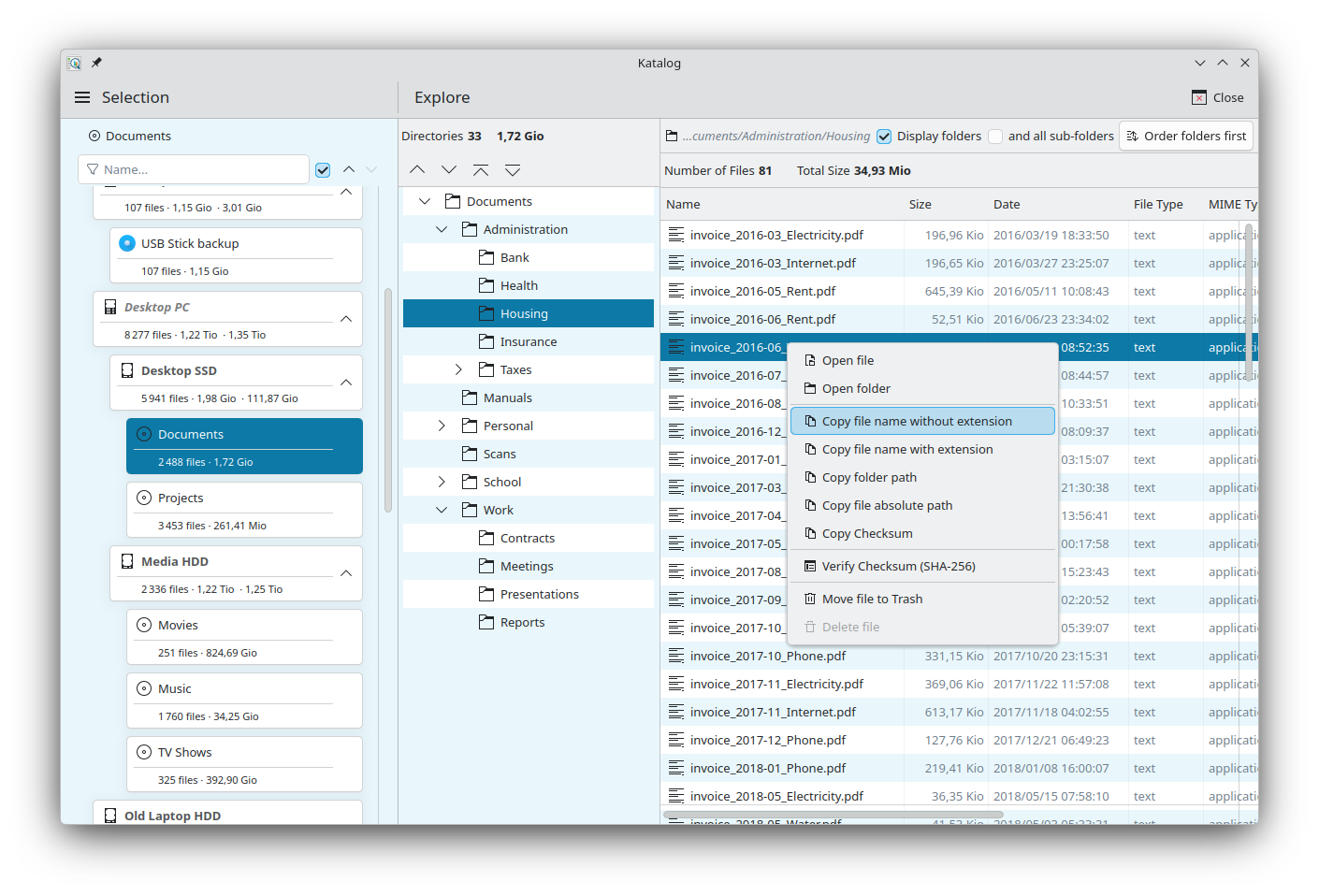
Right-clicking a row opens a menu adapted to the type of the row.
For a file
| Item | Action |
|---|---|
| Open file | Opens the file with its default application. |
| Open folder | Opens the folder of the file in the file manager. |
| Show extended metadata (JSON) | Shows all the metadata stored for the file, as a table, with Copy JSON. Shown when the catalog includes extended metadata. |
| Copy file name without extension | Copies report_2025 from /home/username/Documents/report_2025.pdf. |
| Copy file name with extension | Copies report_2025.pdf. |
| Copy folder path | Copies /home/username/Documents. |
| Copy file absolute path | Copies /home/username/Documents/report_2025.pdf. |
| Copy Checksum | Copies the saved checksum. Shown when the file has one. |
| Calculate Checksum (SHA-256) | Calculates the checksum of the file and saves it. Shown when the file has no checksum yet. |
| Verify Checksum (SHA-256) | Calculates the checksum again and compares it with the saved one. If they differ, the two values are shown, with Update Checksum to save the new one. |
| Move file to Trash | Moves the file to the trash of the system. |
| Delete file | Deletes the file permanently, after confirmation. Available only when Authorize actions that delete files (no recovery) is enabled in the Settings. |
For a folder
| Item | Action |
|---|---|
| Open folder | Opens the folder in the file manager. |
| Copy folder name | Copies Documents from /home/username/Documents. |
| Copy folder path | Copies /home/username/Documents. |
| Move folder to Trash | Moves the folder and its content to the trash of the system. |
Development
- See the backlog of Explore development.