Backup

Summary
This page describes the Backup page, where files are copied or moved from one catalog to another, using the data of the catalogs to know what is missing:
- the concepts: links, backup and archive, conflicts, source mode,
- the list of links, with their coverage and last run,
- creating and editing a link,
- preview and run of a link, or of all listed links,
- the other actions on a link: duplicate, replicate directories, invert, export, delete, LuckyBackup.
Concepts
Links
A link associates a source catalog with a target catalog, where its files are backed up. Both are catalogs of the collection (see Devices): to back up a folder to an external drive, the folder and the backup folder on the drive each need a catalog first (see Create).
Katalog compares the two catalogs to find the files of the source missing from the target, then copies or moves them. It needs no external tool.
Backup or Archive
| Type | Operation | Purpose |
|---|---|---|
| Backup | Copies the missing files to the target. | The source is never changed. The goal is redundancy and recovery. |
| Archive | Moves the files to the target. | Each file is removed from the source once its copy is confirmed. The goal is to free the source, for long-term storage. Empty folders left in the source are not deleted. |
A backup:
- recreates the folder structure of the source on the target, then copies the missing files,
- does not overwrite a file already in the target, even if it is different (see conflicts),
- does not delete files of the target that are absent from the source.
An archive on the same file system moves the files instantly; across file systems, each file is copied, then deleted from the source once the copy is complete. If the copy fails, the source file is left untouched.
Conflicts
A conflict is a file present at the same place in the source and the target, but with a different date, size or checksum. The option On conflict of the link decides what happens:
| Situation | Skip - leave target untouched | Rename oldest - rename target, copy source |
|---|---|---|
| Source newer than target | conflict reported | target renamed, then source copied |
| Target newer than source | conflict reported | skipped, to protect the newer target |
| Same date, different size | conflict reported | skipped (no clear winner) |
| Source file missing on disk | error | error |
With Rename oldest, the old target file is renamed name_YYYYMMDD-HHmmss.ext (for example report_20260225-102559.docx): the date is inserted before the extension so the file can still be opened. If the copy of the source then fails, the renamed file gets its name back: nothing is lost.
These renamed files stay on the target and take space: they are cleaned up manually.
Source mode
- By default, the list of source files comes from the catalog: it works with the source disconnected for the comparison, and the folders excluded from the catalog are not backed up.
- With Scan source drive directly (requires connected source), the source folder is read from the drive: every file is included, whatever the catalog and its exclusions. The source must be connected.
Space on the target
| Operation | Space needed on the target | Effect on the source |
|---|---|---|
| Backup | All files to copy. | None. |
| Archive, same file system | None: the files are only moved. | Space freed. |
| Archive, another file system | All files to move. | Space freed after each file is deleted. |
| Rename oldest conflicts | The renamed files are kept: one more copy each. | None. |
The preview checks the space available on the target and warns when it is insufficient or low (less than 512 MB left after the operation). A run is checked again before it starts: with insufficient space it is refused, and the message gives the space required, available and missing. When the space of the target cannot be read (network or virtual drives), there is no check.
List of links
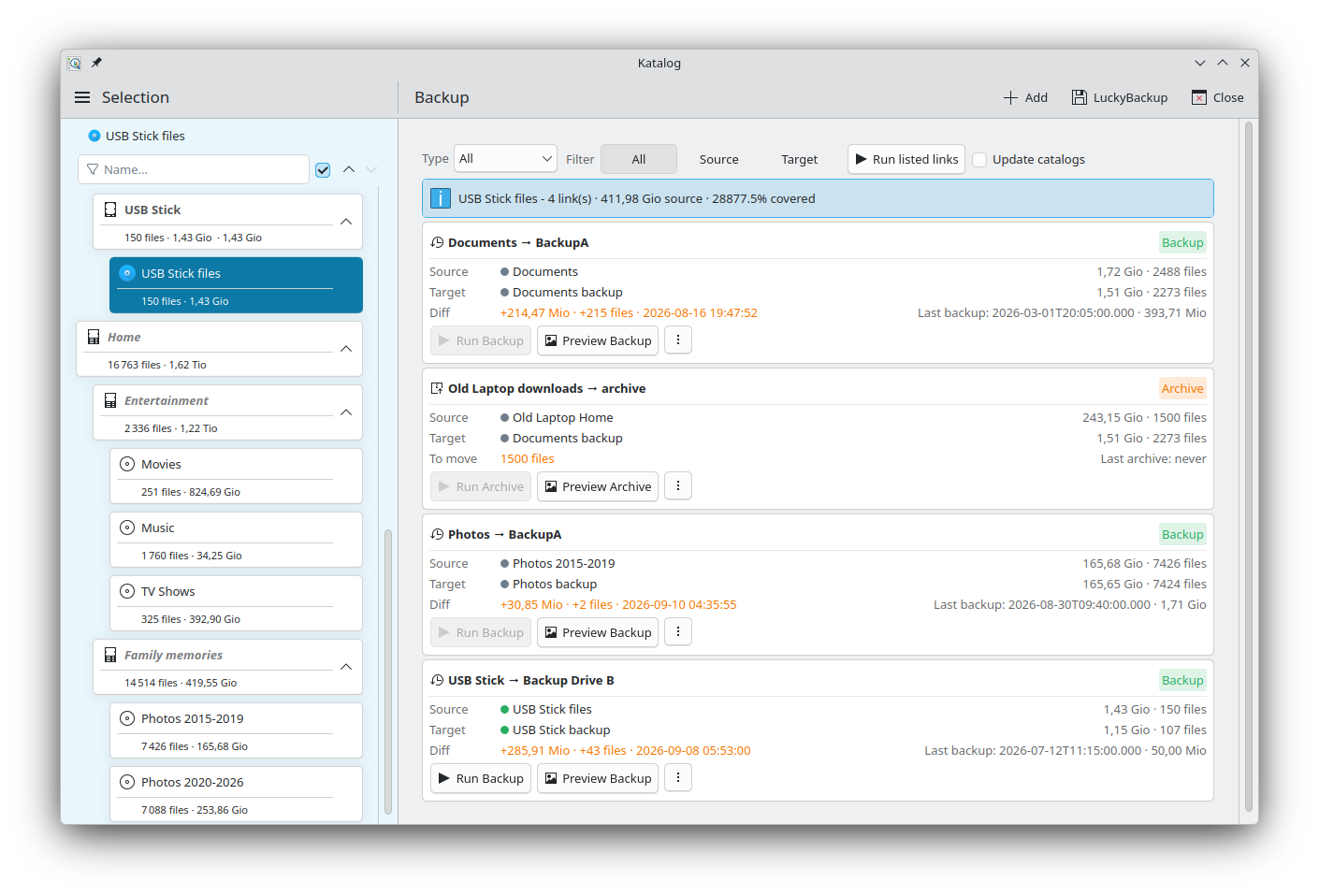
The page lists the links as cards.
Filters
| Filter | Effect |
|---|---|
| Type | All, Backup or Archive. |
| Filter | All links, or only those where the device selected on the Selection page is the Source or the Target. |
A line above the cards gives, for the selected device, the number of links, the size of their sources and, for backups, the percentage covered: how much of the sources is already in the targets.
Cards
Each card shows:
- the link name and its type,
- the Source and Target catalogs, with their size and number of files,
- Diff for a backup: what the target is missing, or Up to date; To move for an archive: what is still in the source, or Nothing to move,
- Last backup or Last archive: date and size of the last run, or never,
- the buttons Run Backup / Run Archive, Preview Backup / Preview Archive, and More actions.
When there is no link yet, the page says so and Add creates the first one.
Creating or editing a link
Add in the page toolbar opens the Add Link form; Edit in More actions opens the same form, Edit Link, for an existing link.
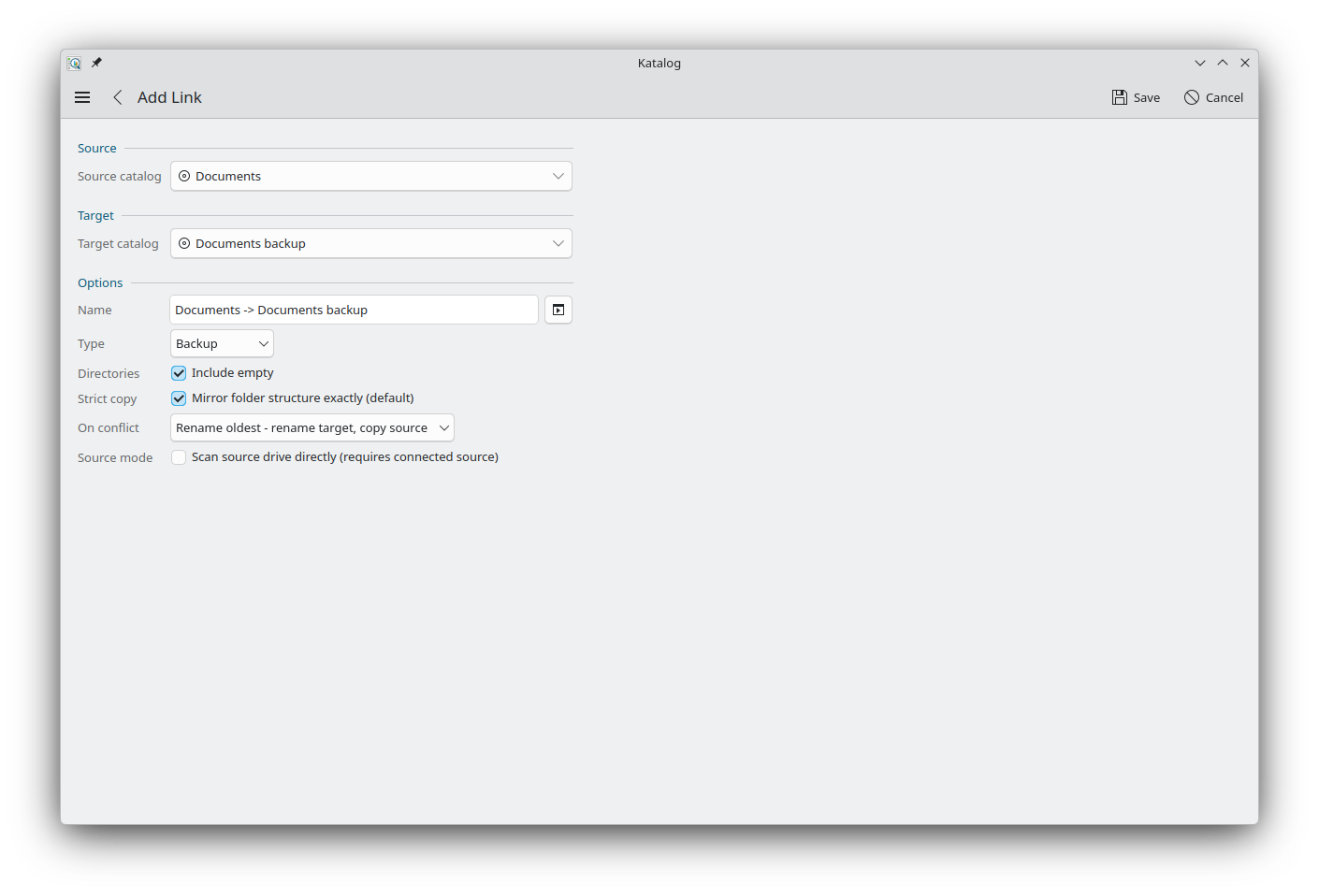
| Field | Description |
|---|---|
| Source catalog | The catalog whose files are backed up. |
| Target catalog | The catalog where they are written. |
| Name | Name of the link. The button beside it (Auto-generate name) makes <source> -> <target>. |
| Type | Backup (copy) or Archive (move), see above. |
| Directories | Include empty (ticked by default): folders that hold nothing, no file and no sub-folder, are recreated on the target too. Unticked, only folders that hold something are created. It never removes a folder already on the target. |
| Strict copy | Mirror folder structure exactly (default): every file is copied to its own place, even if the same file is already somewhere else in the target. Unticked, a file is skipped when a file with the same name and size is already anywhere in the target: no duplicates. Always off for an archive. |
| On conflict | See conflicts. |
| Source mode | See source mode. |
Save creates or updates the link; Cancel closes the form. A message at the top of the form says what is missing.
Preview
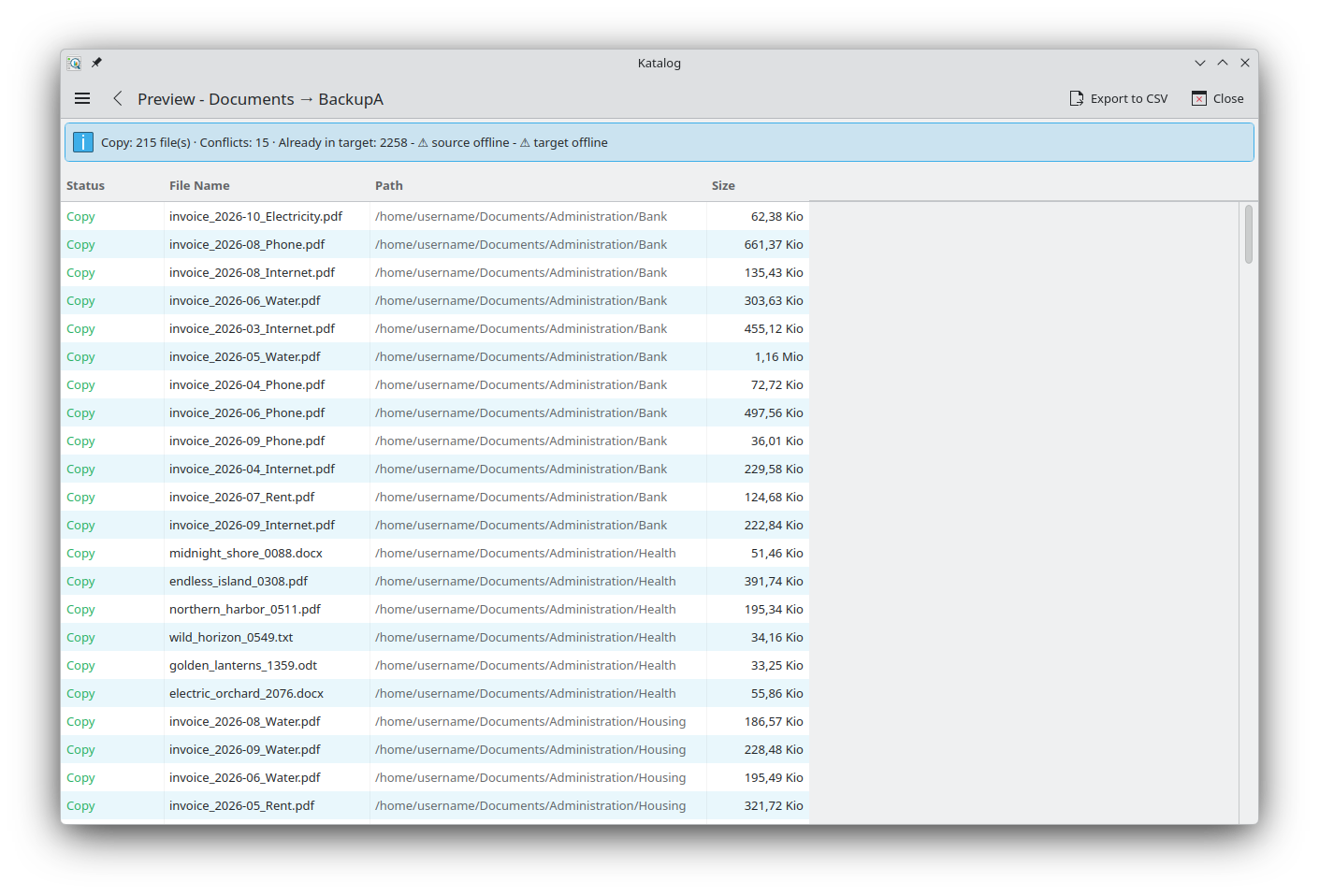
Preview Backup / Preview Archive computes what a run would do, without copying anything. When Update catalogs is ticked, both catalogs are updated first. The result opens on its own page:
- a summary: files to copy or move, conflicts, files already in the target, and a warning when the source or the target is offline,
- the space check of the target,
- the list of files, with their Status (Copy, Move or Conflict), File Name, Path and Size,
- Export to CSV saves the list in the collection folder (the home folder in Hosted mode), and shows the file path; clicking it opens the file.
Run
Run Backup / Run Archive starts the link. It needs both the source and the target to be available.
- With Update catalogs ticked (recommended), both catalogs are updated before the comparison, so the backup works on current data. After a run that was not cancelled, the target is updated again (and the source too, for an archive), so the catalogs show the result.
- While it runs, the card shows the progress, the file being copied, the speed and the time left (ETA). Pause suspends it after the current file, Resume continues, Cancel stops it: a file being copied is removed from the target, so no partial file is left.
- At the end, a line at the top of the page gives the result: files copied or moved, archived & copied (Rename oldest), conflicts and errors. Last backup is updated on the card.
- Report, on that line, opens the list of the files of the run, one row per file with its status (Copied, Moved, Archived & Copied, Conflict, Error), name, path and size, and the totals. It is the report of the last run (of the last link, after Run listed links); it is kept until the next run or until Katalog is closed.
Run listed links
Run listed links runs the links listed on the page, one after another, so a set of backups can be started at once and left to finish.
- The filters decide what runs: to run another set, change the filters first.
- Only links whose source and target are available run; the others are skipped.
- A confirmation comes first: the number of links that will run, the volume of the archives (an upper bound) and of the backups (approximate), and the number of links skipped. These are estimates from the catalog totals; for an exact figure, use Preview on a link.
- Each link runs as if started from its own card, including Update catalogs.
- Cancel stops the whole run: the links still waiting are not started. Pause and Resume act on the link running.
More actions
| Action | Description |
|---|---|
| Edit | Opens the link in the form. |
| Duplicate | Creates a new link with the same settings, to adapt it. |
| Replicate directories | Creates the folder structure of the source on the target, without the files. The result gives the folders created, already existing, and errors. |
| Invert (swap source and target) | Swaps the source and the target, for example to restore. When the name contains an arrow, its two halves are swapped too. |
| Export to CSV | Computes the preview of this link, then saves its list of files in a CSV file in the collection folder (the home folder in Hosted mode), and shows the file path; clicking it opens the file. |
| Delete | Deletes the link, after confirmation. No file is touched, on the source or the target. |
LuckyBackup profile
LuckyBackup in the page toolbar creates a LuckyBackup profile from the links listed on the page: each link becomes a task. The profile is saved in ~/.luckyBackup/profiles/. See LuckyBackup profile.
Development
Some ideas of developments for this screen:
Future Features
- Snapshot management
- Exclude/include patterns
- Scheduling (cron/systemd/Task Scheduler)
- Restore functionality
- Compression options
- Remote backups (ssh)
Future conflict modes
| Mode | Behaviour |
|---|---|
| Overwrite | Source always wins — overwrites the target silently. For users who want the source to be authoritative regardless of date. |
| Rename always | Always renames the target and copies the source, even when the target is newer — aggressive, explicit archiving. |
Future Options
- Archive source cleanup: opt-in option to delete empty directories left behind in the source after an Archive (move) operation.
- Delete mode: opt-in option to remove target files absent from source.
- Checksum comparison: detect content changes even when name/size/date match.
- Scheduled/automated backup: run on timer or on catalog update.
- Backup history: log of past backup runs with dates and statistics.
Future Features for Disk Space
- Per-link minimum free space setting: user-configurable floor (e.g., always keep 5 GB free).
- In-flight space exhaustion early abort: detect ENOSPC errors during copy and stop immediately rather than continuing to fail file after file.
- Post-archive source verification: confirm actual source space was freed after Archive completes.
- Space trend display: show target space over time in the Statistics tab.
- Archived file cleanup tool: list and bulk-delete
stem_YYYYMMDD-HHmmss.extfiles produced by RenameOldest mode.
- For more, see the backlog of BackUp development.