Devices: Device Tree

Summary
This page describes all the features of the Device Tree view of the Devices screen and how to use them.
The Device Tree shows the complete hierarchy of all devices — Physical Group with its storage devices and catalogs, and all Virtual Groups with their assigned catalogs.
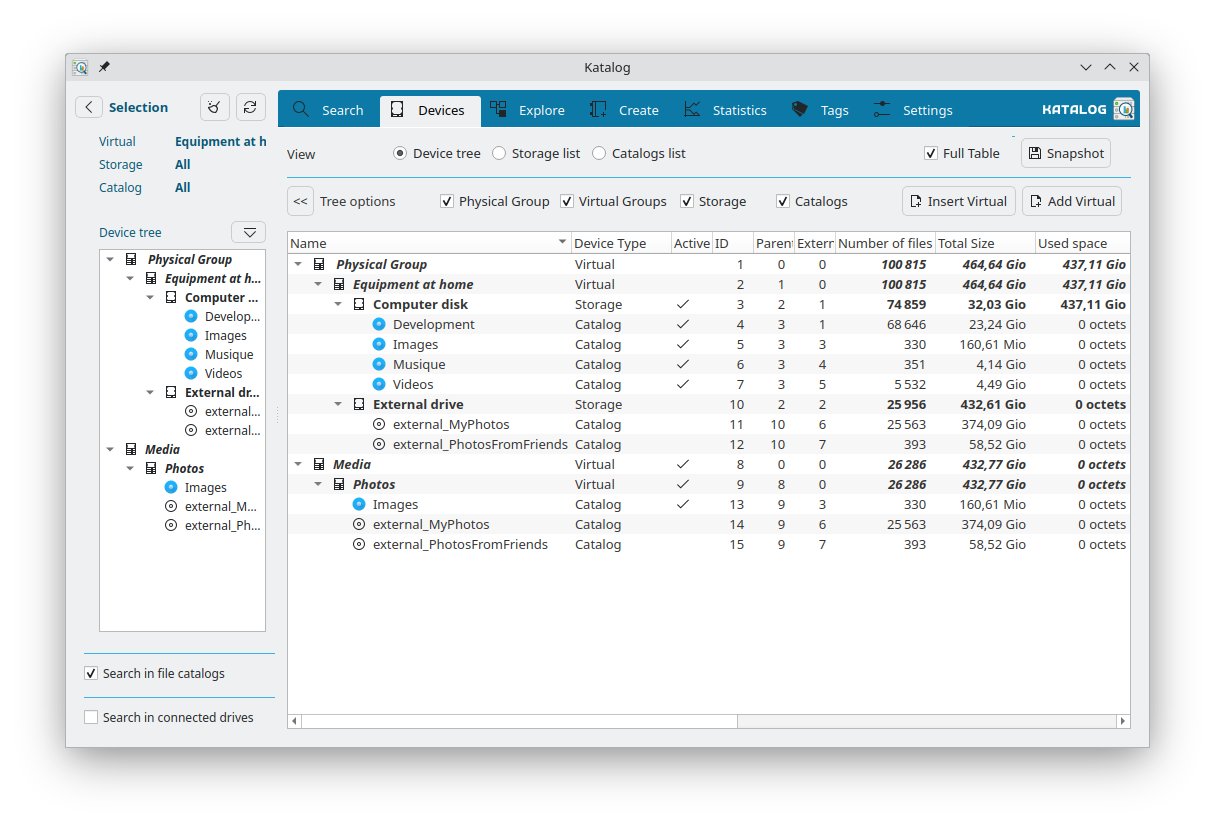
Display options
The top bar controls which parts of the tree are shown:
| Option | Description |
|---|---|
| Physical Group | Shows or hides the Physical Group and all its devices |
| Virtual Groups | Shows or hides all Virtual Groups and their assigned devices |
| Storage | Shows or hides Storage devices (hiding Storage also hides the catalogs beneath them) |
| Catalogs | Shows or hides Catalog devices |
The Apply to Selection button saves the current display options and applies them to the device tree shown in the Selection panel, so both views stay consistent.
Action buttons
| Button | Description |
|---|---|
| Insert Virtual Group | Creates a new Virtual Group at the top level and opens the Edit panel |
| Add Virtual | Creates a new Virtual device under the selected device and opens the Edit panel |
| Expand tree | Expands all nodes in the tree |
| Collapse tree | Collapses all nodes in the tree |
Context menu
Right-clicking on any device in the tree opens a context menu whose entries depend on the type of device selected.
Catalog devices

| Action | Condition | Description |
|---|---|---|
| Update | Active catalog only | Re-scans the catalog from its source path |
| Explore | Always | Opens the catalog in the Explore screen |
| Edit | Always | Opens the Edit panel to modify the catalog's settings |
| Open folder | Path is set and not an export | Opens the catalog's source folder in the file manager |
| Verify Checksums | Always | Re-calculates and compares checksums for all files in the catalog |
| Filelight | Active catalog only | Opens Filelight in the source path |
| Unassign this catalog | Catalog is in a Virtual Group | Removes the catalog from the virtual group (the catalog itself is not deleted) |
| Delete this catalog | Physical group catalogs and exports | Permanently removes the catalog from the collection |
Storage devices

| Action | Condition | Description |
|---|---|---|
| Update | Always | Updates the storage device and all its catalogs |
| Edit | Always | Opens the Edit panel to modify the storage device's fields |
| Open folder | Path is set | Opens the storage path in the file manager |
| Filelight | Active storage only | Opens Filelight in the storage path |
| Unassign this storage | Storage is in a sub-group | Removes the storage from its parent virtual device |
| Delete this storage | Always | Permanently removes the storage device |
Virtual devices and groups
Virtual Groups and Virtual devices share the same context menu, with slight variations:


| Action | Condition | Description |
|---|---|---|
| Update | Always | Updates all catalogs and storage devices under this virtual device |
| Edit | Always | Opens the Edit panel to rename the virtual device |
| Open folder | Path is set | Opens the path in the file manager |
| Add Virtual device | Always | Creates a new Virtual device under this device |
| Add Storage device | Physical Group items only | Creates a new Storage device under this device |
| Assign selected catalog | Virtual Groups only (a catalog must be selected in Selection) | Assigns the currently selected catalog to this virtual device |
| Delete | Always (except the root Physical Group) | Deletes the virtual device (only possible if it has no sub-items and no assigned catalogs) |
Assigning and unassigning catalogs to virtual groups:


- Assign selected catalog: assigns the catalog currently selected in the Selection panel to the chosen virtual device.
- Unassign this catalog: available in the catalog's own context menu when the catalog is in a Virtual Group — removes the assignment without deleting the catalog.
Development
Some ideas of developments for this screen:
- See the backlog of Devices development.