Interface

Summary
This page describes the parts of the Katalog window that are shared by all screens: the drawer, the way pages open side by side, the keyboard shortcuts, the activity panel, the appearance options and the About page.
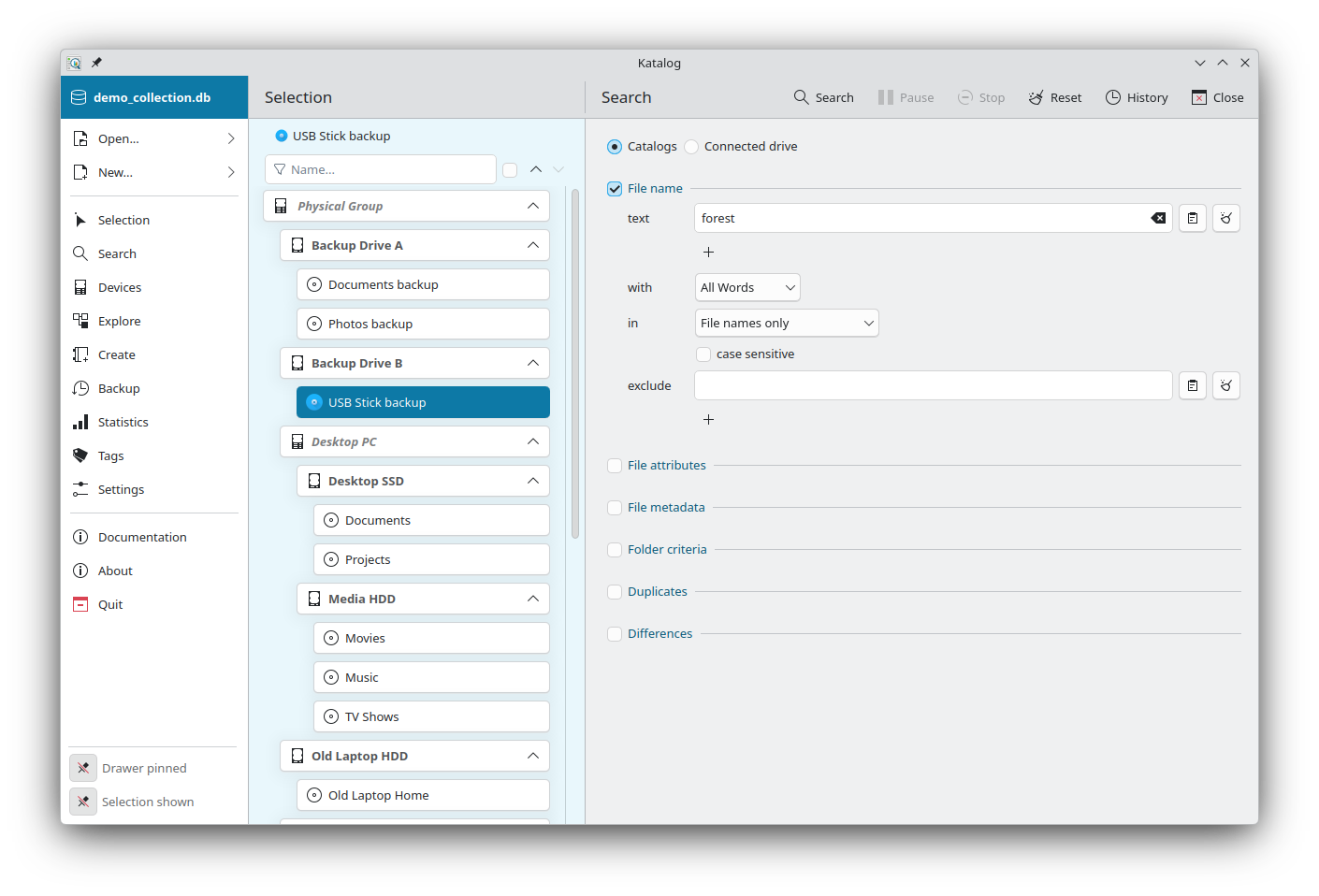
The window has three areas:
- the drawer on the left, to open a collection and go to any screen,
- the pages, shown side by side, starting with the Selection,
- the activity panel at the bottom, while a catalog creation, a device update or a search is running.
Pages
The Selection page is the starting point: it lists the devices of the collection and is always the first column.
Opening a screen from the drawer (for example Search, Devices or Explore) shows its page next to the Selection. Only one screen is open at a time: opening another one replaces it.
Running a search opens the Results page to the right of the Search page. From a result, Explore folder opens the Explore page on that folder.
Each page has a Close button in its toolbar, which goes back one step. Settings and About open over the other pages, and also close with their Close button.
Show or hide the Selection
When a screen is open next to the Selection, the Selection can be hidden to give more room to that screen.
Use the button at the bottom of the drawer: it reads Selection shown or Selection hidden. It is available only when a screen is open next to the Selection. The choice is kept for the next start.
Window size and position
The size and position of the window, and whether it is maximized, are restored at the next start.
Drawer
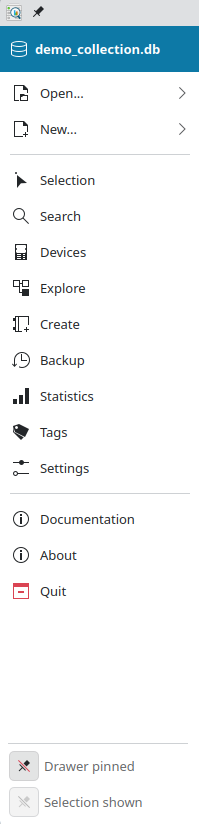
The top of the drawer shows the open collection: an icon for its mode (Memory, File or Hosted) and its name:
- in Memory mode, the name of the collection folder,
- in File mode, the name of the database file,
- in Hosted mode, the server name, a
/, then the database name.
Below it:
| Item | Use |
|---|---|
| Open... | Opens a collection, or reopens a recent one: see Open a collection. |
| New... | Creates a new collection: SQLite Database... creates a new database file and opens it. |
| Selection … Tags | Open the screen: Selection, Search, Devices, Explore, Create, Backup, Statistics, Tags. |
| Settings | Opens the Settings. |
| Documentation | Opens this documentation in the web browser. |
| About | Opens the About page. |
| Quit | Closes Katalog. |
Open a collection
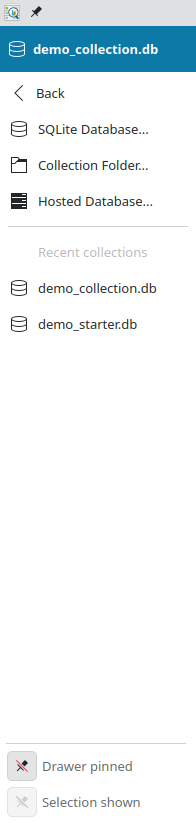
Open... unfolds a menu with:
- SQLite Database...: opens a database file (
.db), in File mode, - Collection Folder...: opens a collection folder, in Memory mode,
- Hosted Database...: opens a database on a server, in Hosted mode.
Under Recent collections, the menu then lists the 10 most recently opened collections, most recent first: click one to reopen it directly.
Switching to another collection does not restart Katalog: the collection is opened directly and all screens are refreshed.
Pinned or floating drawer
The first button at the bottom of the drawer reads Drawer pinned or Drawer floating:
- pinned: the drawer stays open on the left of the pages,
- floating: the drawer opens over the pages and closes after a choice.
The choice is kept for the next start.
The second button reads Selection shown or Selection hidden: see Show or hide the Selection.
Keyboard shortcuts
| Key | Action |
|---|---|
Esc | Goes back one step: same as the Close button of the last open page (or Cancel on the device edit page). |
Ctrl+F | Puts the cursor in the device filter of the Selection page. |
Ctrl+Q | Quits Katalog on Linux (Cmd+Q on macOS). |
How Esc works:
- An open dialog, menu or drop-down list closes first; the page under it stays open.
Esccloses the page even when the cursor is in a text field.- On the device edit page and on the Create page,
Escdiscards what was typed, like Cancel and Close. There is no confirmation.
Keyboard navigation in the search results is described on the Search results page.
Activity panel

The activity panel appears at the bottom of the pages while a catalog creation, a device update or a search is running. It is the one place to follow these operations, whichever page is open:
- the status message shows what is being processed and how far it has got,
- Stop stops the running operation.
When an operation ends (completed, stopped or failed), the panel stays visible a few seconds with its final status, then hides.
Queue
Katalog runs one catalog creation or device update at a time. A creation or update requested while another one is running is added to the queue instead of being refused:
- the panel shows Queue and the number of operations waiting,
- each waiting operation is listed (Create or Update, with the device name) and can be taken out with Remove,
- Clear empties the queue,
- the queued operations run one after another, in the order they were requested.
Stop ends only the running operation: the next one in the queue then starts. A device already running or waiting is not added a second time.
A search cannot start while a creation or update is running (the Search button is disabled), and a creation or update cannot start while a search is running.
Appearance
The look of Katalog can be adjusted in the Application section of the Settings:
- Theme: desktop colours or Katalog's own colours, always following the light or dark mode of the system.
- Icon and text size: bigger icons, and a smaller or larger text.
- Language: the language of the interface.
Buttons that show only an icon display their name when the mouse pointer stays over them.
About
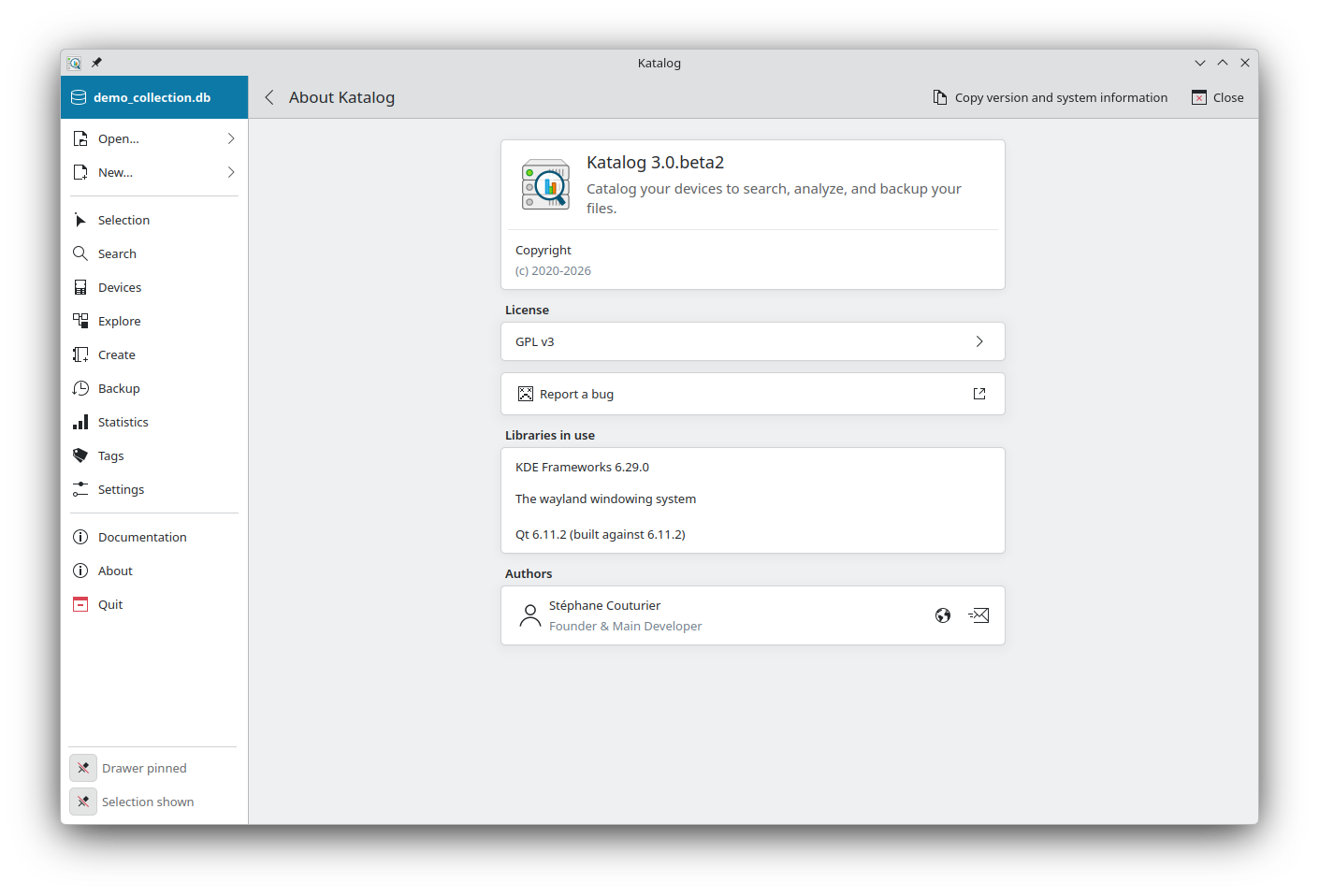
The About page shows the version of Katalog, its licence and its author.
Copy version and system information copies a short text to the clipboard, ready to be pasted in a bug report. It contains:
- the Katalog version and release date,
- the versions of Qt and KDE Frameworks,
- the operating system, kernel and processor architecture,
- the language of the interface,
- the database mode and database version,
- the display server and desktop environment.
It contains no personal information: no user or computer name, no path to files or collections, no collection name, and no server address or password.
Development
- See the backlog of Interface development.