Explore

This page is a copy of the Katalog 2 documentation (2.13), kept for reference. For Katalog 3, see the current documentation.
Summary
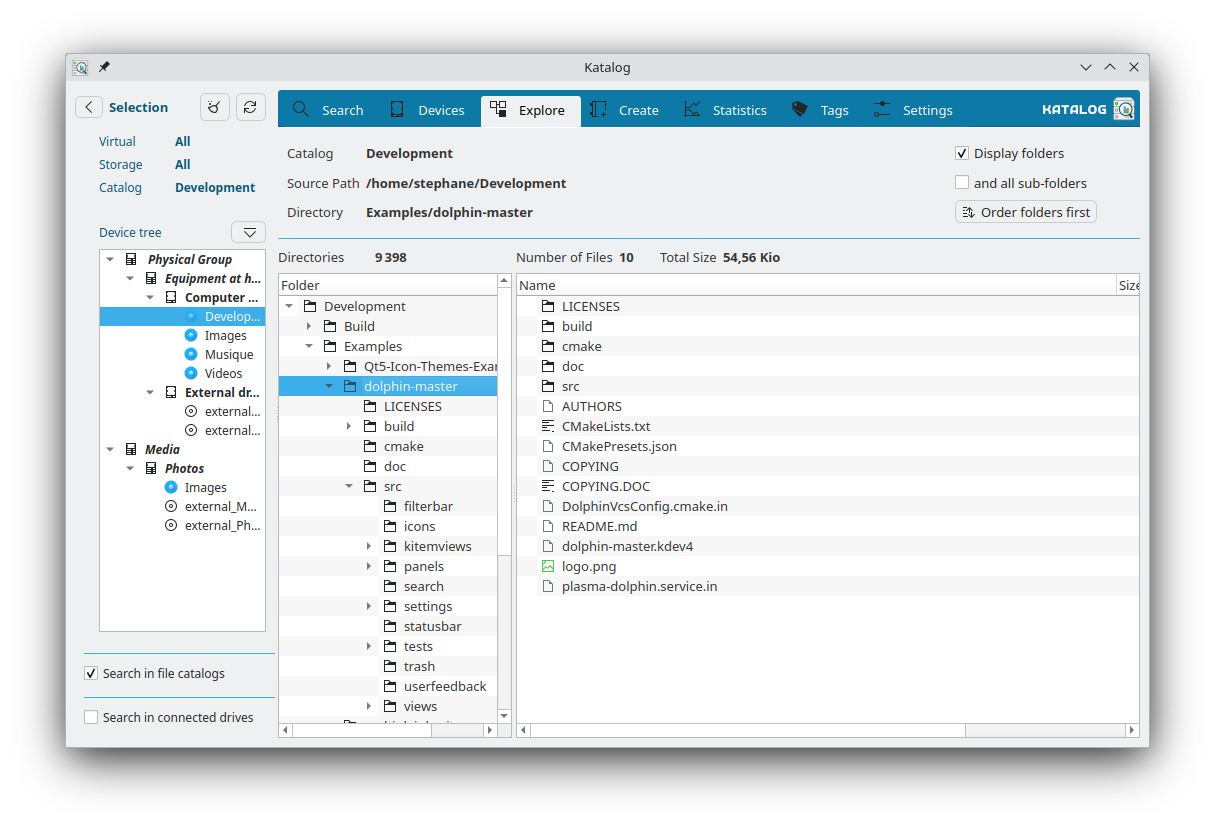
This page describes all the features of the Explore screen and how to use them.
The objective of this screen is to explore the contents of a catalog of files even when the physical device is not connected.
This view loads data after a right-click on a catalog from the Selection panel or the Catalogs list view, and choosing the context menu entry Explore.
Features
The screen is split into two panels:
- Left panel — directory tree of the catalog. Click on a directory to display its files in the right panel.
- Right panel — file list for the selected directory.
Clicking on a file in the right panel will try to open it with the system's default application, if the device is currently connected. Clicking on a folder entry will navigate into that folder.
When folders are listed, each one shows its total size — the files it holds plus everything in the folders below it — so the biggest folders can be spotted without connecting the device. The total size of the whole catalog is shown at the top, next to the folder path.
Directory tree
The left panel opens on the catalog root and its first two levels of directories; deeper levels start folded.
A directory that contains sub-directories carries a small arrow: click it to fold or unfold that branch. Directories with no sub-directory have no arrow, and all rows stay aligned.
Four buttons above the tree change how much of the hierarchy is shown at once:
| Button | Effect |
|---|---|
| Collapse one level | Folds away the deepest level currently shown |
| Expand one level | Unfolds one more level of the tree |
| Collapse all | Folds everything back to the catalog root |
| Expand all | Unfolds every directory of the catalog |
A button is greyed out when it would have nothing left to fold or unfold.
Navigating into a folder from the right panel unfolds the branch it belongs to, so the selected directory is always visible in the tree.
The tree always reopens on the catalog root and its first two levels: the folded or unfolded state is not kept between visits.
Display options
Three options control what appears in the file list:
- Display Folders — when enabled, folder entries are shown alongside files. Enabling this also activates the two options below.
- Display Sub-Folders — when enabled, files from all sub-folders are listed together in the file list.
- Order Folders First — button that re-sorts the list to show folders first (alphabetically), then files (alphabetically).
Directory context menu (right-click)
Right-clicking on a directory in the left panel shows:
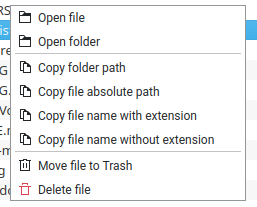
- Tag this folder — opens the Tags screen with this folder pre-filled, to assign a tag to it.
File and folder context menu (right-click)
Right-clicking on an entry in the right panel shows a context menu that adapts to the type of entry selected.
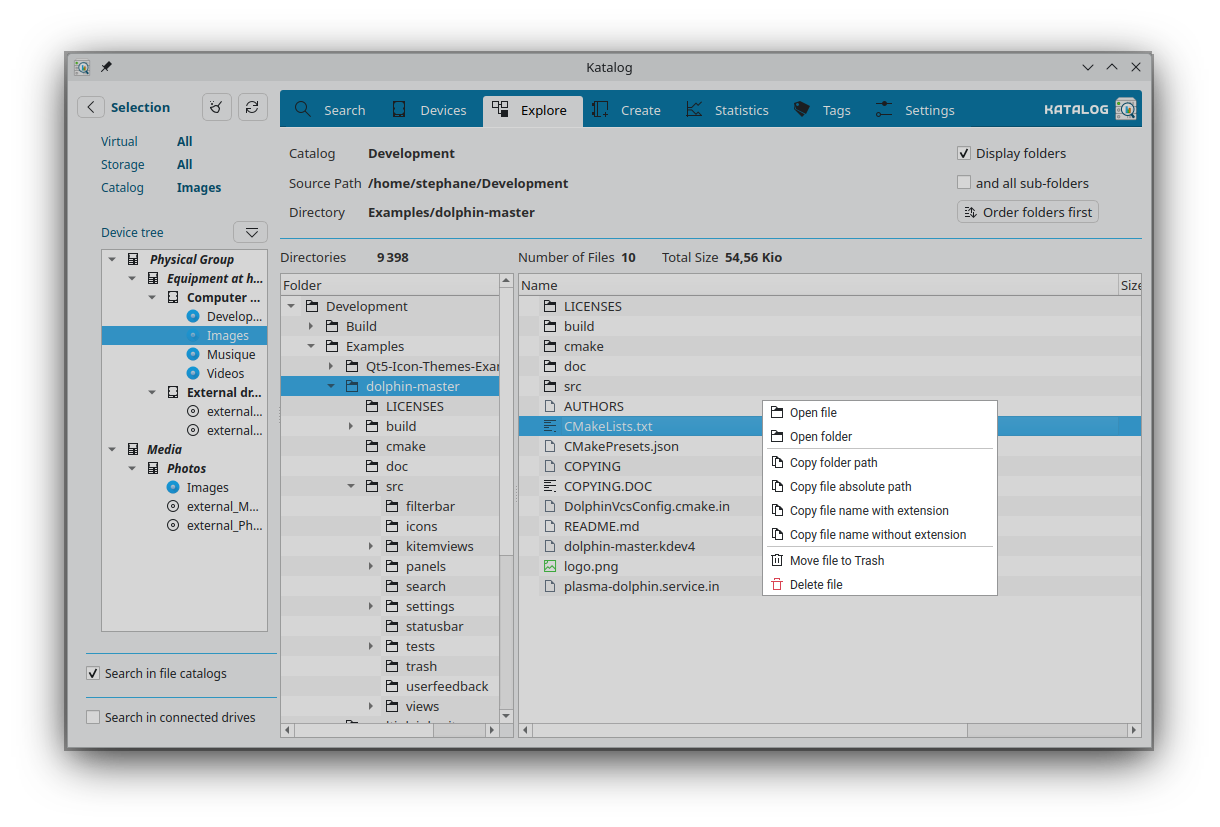
For files
| Action | Description |
|---|---|
| Open file | Opens the file with the system's default application. If the explored device is not connected, a warning is shown instead and the file is not opened. |
| Open folder | Opens the file's parent folder in the system's file manager |
| Show extended metadata (JSON) | Displays detailed metadata (available only if the catalog was indexed with extended metadata) |
| Copy folder path | Copies the file's parent folder path to the clipboard |
| Copy file absolute path | Copies the full file path to the clipboard |
| Copy file name with extension | Copies the file name (with extension) to the clipboard |
| Copy file name without extension | Copies the file name (without extension) to the clipboard |
| Copy Checksum | Copies the stored checksum to the clipboard (shown only if a checksum is stored) |
| Calculate Checksum (SHA-256) | Calculates and saves the file's SHA-256 checksum (shown only if no checksum is stored yet) |
| Verify Checksum (SHA-256) | Recalculates the checksum and compares it with the stored value (shown only if a checksum is stored) |
| Move file to Trash | Moves the file to the system trash |
| Delete file | Permanently deletes the file |
For folders
| Action | Description |
|---|---|
| Open folder | Opens the folder in the system's file manager |
| Copy folder path | Copies the folder path to the clipboard |
| Copy folder name | Copies the folder name to the clipboard |
| Move folder to Trash | Moves the folder to the system trash |
Development
Some ideas of developments for this screen:
- See the backlog of Explore development.