Devices: Storage

This page is a copy of the Katalog 2 documentation (2.13), kept for reference. For Katalog 3, see the current documentation.
Summary
This page describes all the features of the Storage list view of the Devices screen and how to use them.
A Storage device represents a physical drive, disk, or other storage medium from which one or more catalogs can be created.
The data associated with a storage device combines three types of information:
- Physical: free space, used space, total space, label, file system — read from the drive when connected.
- Calculated: total number of files and total file size — automatically derived from the catalogs associated with this storage.
- User-defined: path, type, brand, model, serial number, build date, comments.
Storage devices can only be placed inside the Physical Group and its sub-items.
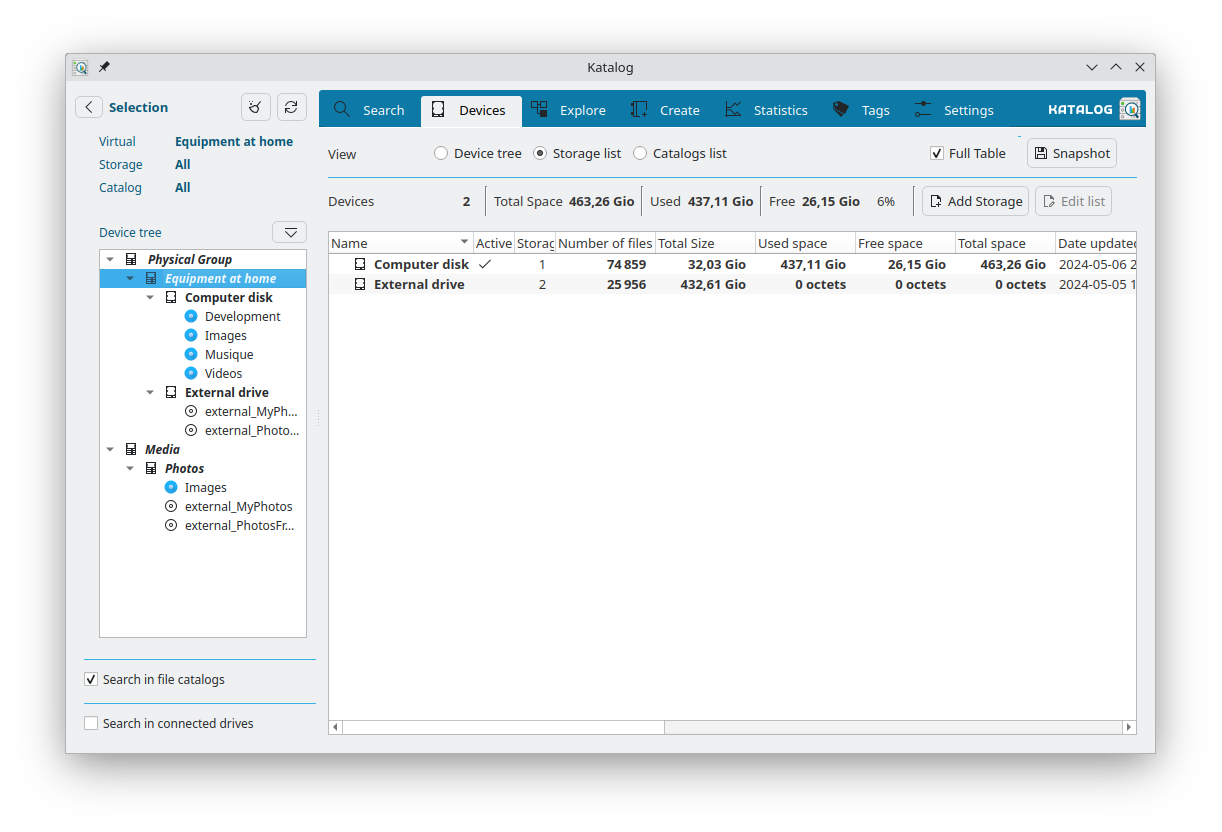
List and selection
The list of storage devices can be narrowed down using the Selection left panel.
When the path of a storage device points to a connected and mounted location, the storage icon is shown in color, indicating the storage is active.
Action buttons
| Button | Enabled when | Description |
|---|---|---|
| Update | A storage device is selected | Updates the selected storage and all its associated catalogs |
The All active button is not available in the Storage list view — it is only enabled in the Catalog list view.
Context menu
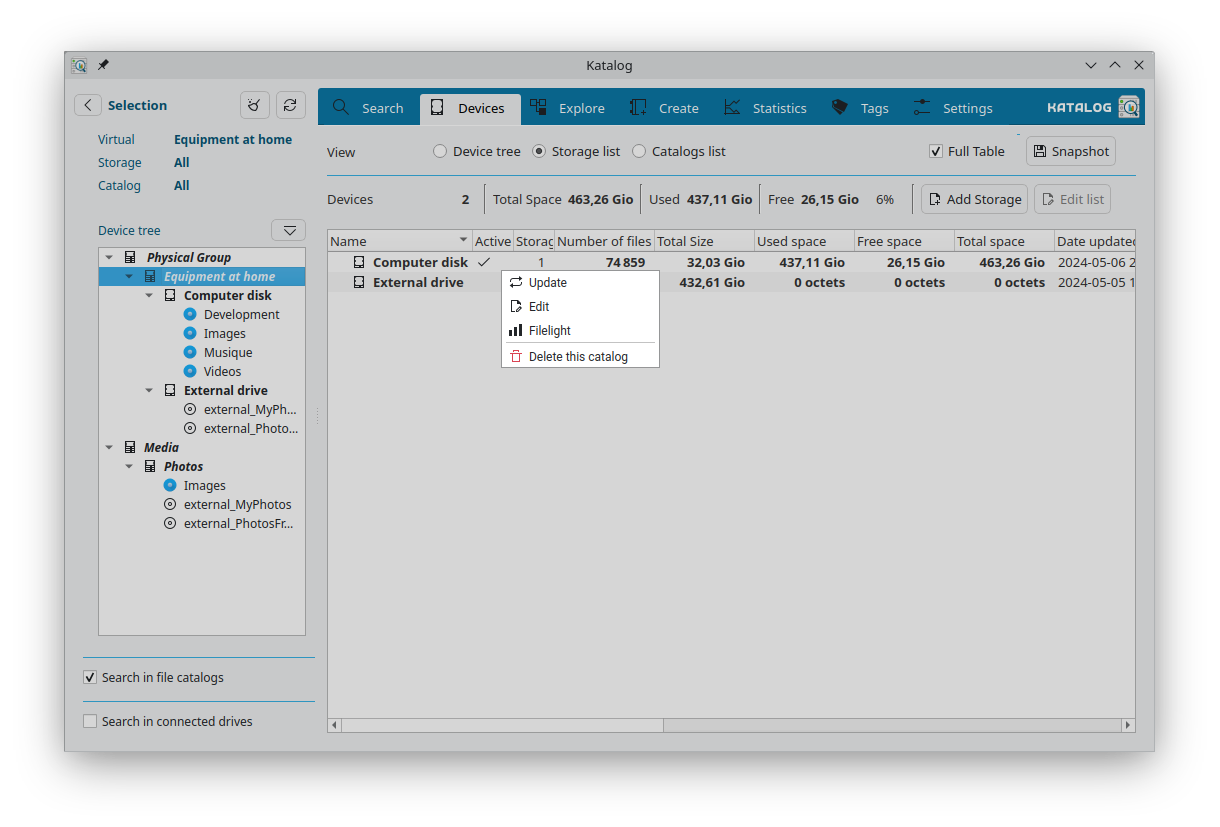
Right-clicking on a storage device opens a context menu:
| Action | Condition | Description |
|---|---|---|
| Update | Always | Updates the selected storage device and all catalogs below it |
| Edit | Always | Opens the Edit panel to modify the storage device's fields |
| Open folder | Path is set | Opens the storage path in the file manager |
| Filelight | Active storage only | Opens Filelight in the storage path |
| Unassign this storage | Storage is assigned to a sub-group | Removes the storage from its parent virtual device (the storage itself is not deleted) |
| Delete this storage | Always | Permanently removes the storage device (only possible if no catalogs are associated with it) |
Edit
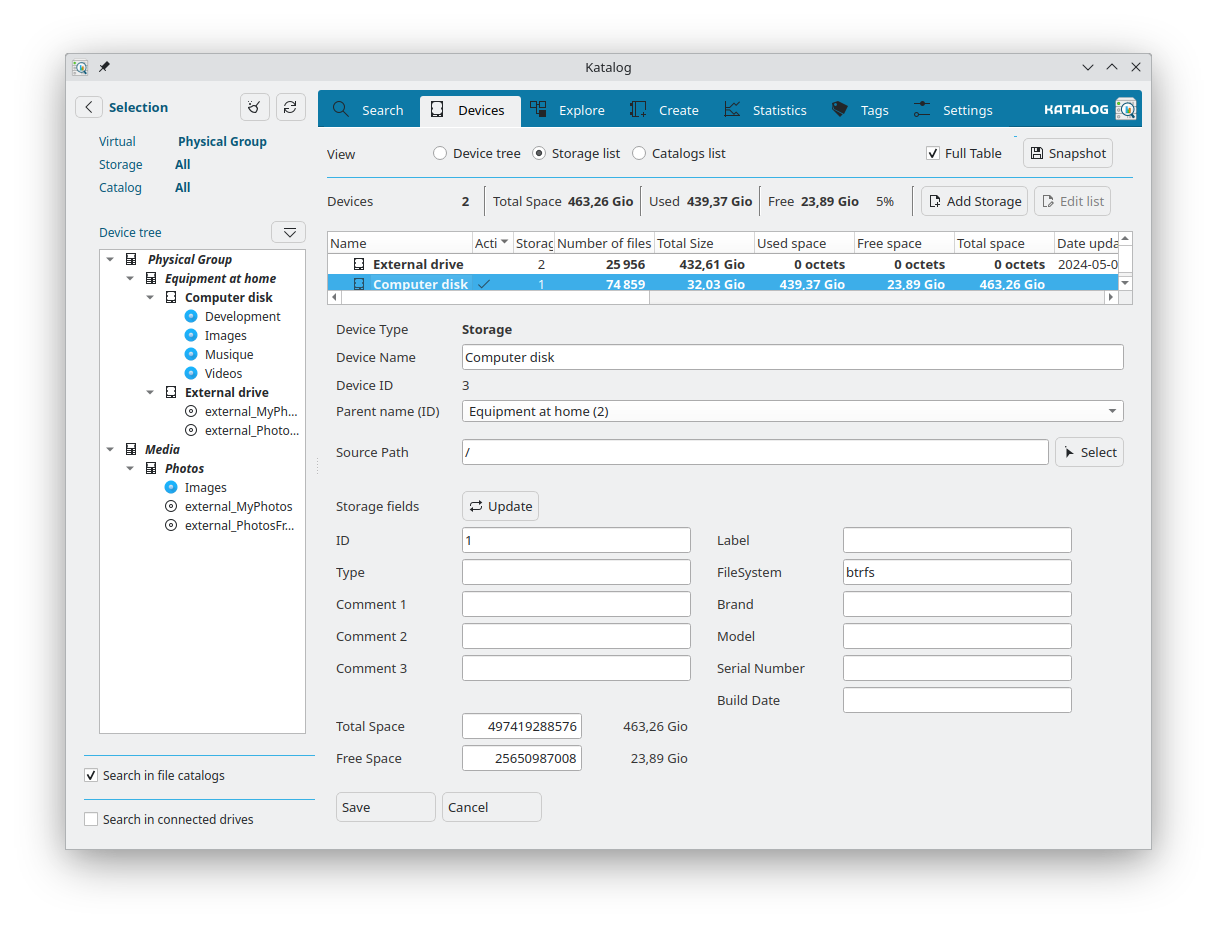
The edit panel gives access to modify all storage device fields:
| Field | Description |
|---|---|
| Device Name | The display name of the storage device |
| Source Path | The mount point or root path of the device (e.g. /media/user/MyDisk on Linux, E:\ on Windows) |
| Type | The type of device (e.g. internal drive, external drive, USB, NAS…) |
| Label | The filesystem label of the drive |
| File System | The filesystem type (e.g. ext4, NTFS, exFAT…) |
| Brand | The manufacturer of the drive |
| Model | The drive model name |
| Serial Number | The drive's serial number |
| Build Date | The manufacturing date of the drive |
| Comment 1 / 2 / 3 | Free-text fields for notes |
| Picture | An image associated with this storage — see Device picture below |
| Parent device | The virtual device or group this storage belongs to |
Source path change
When the Source Path is changed and saved, Katalog detects the change and offers three options for updating all associated catalog indexes:
| Option | Description |
|---|---|
| Replace path root | Instantly updates all indexed file and folder paths in every associated catalog by replacing the old path prefix with the new one — no rescan required, works without the device connected |
| Full re-scan | Re-scans all catalogs under this storage device from the new path |
| Skip | Saves the new path without modifying any catalog index |
Replace path root is the fastest option when the device has not changed physically and only its mount point or drive letter has changed.
Device picture
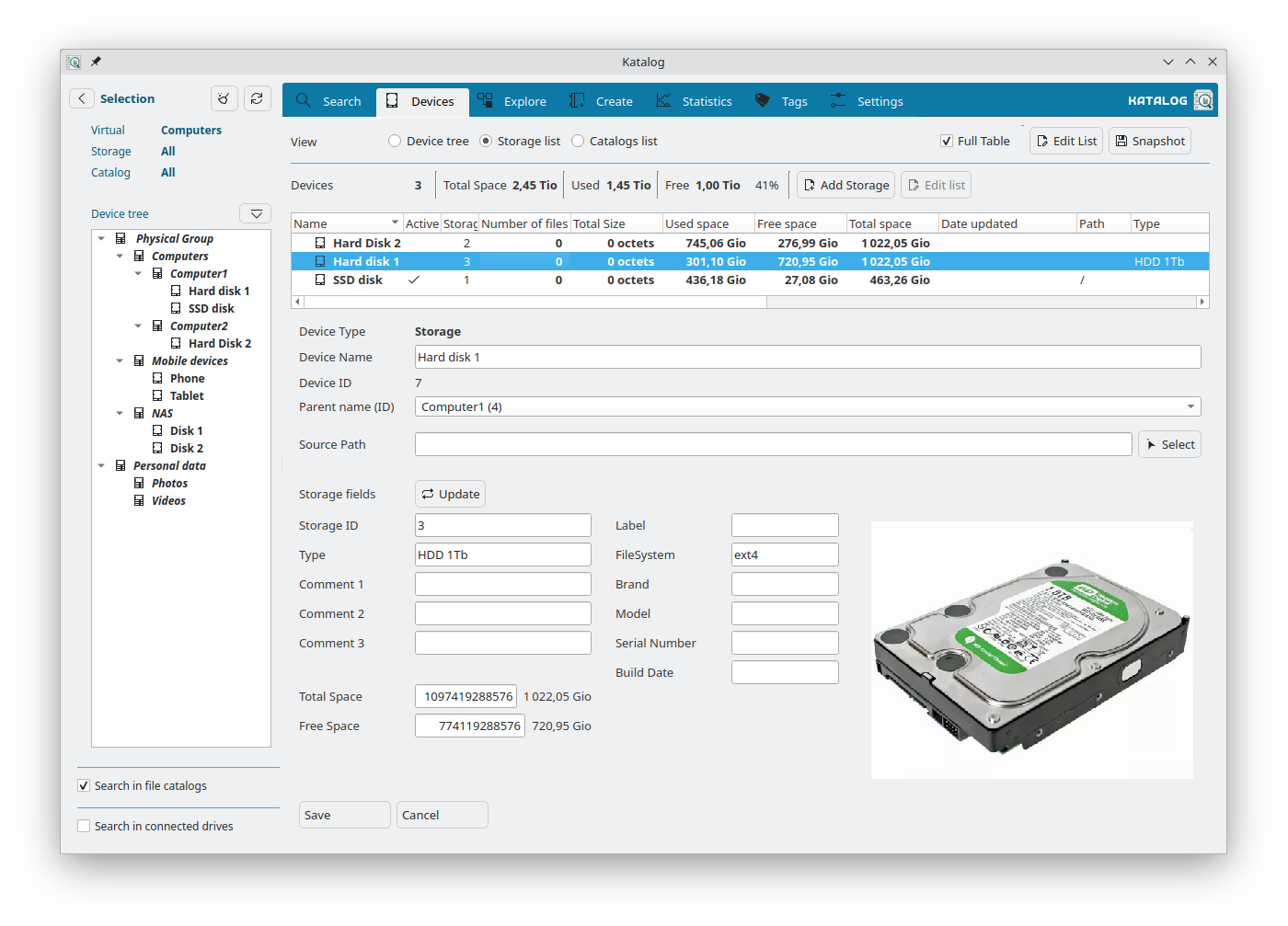
A picture can be associated with a storage device to help visually identify it.
To use it:
- Place image files in the images folder (configurable in Settings, defaults to
<collection_folder>/images). - In the storage edit panel, select the desired image from the Picture dropdown — it lists all image files found in the images folder.
- Save the storage to apply the association.
If no picture is explicitly assigned, Katalog looks for a file named <storageID>.jpg in the images folder as a fallback.
Development
Some ideas of developments for this screen:
- See the backlog of Devices development.